




Can Excel Really Scrape Websites in 2026?
For a huge number of analysts, marketers, and founders, Excel is still the fastest place to turn a messy web page into clean rows and columns. You do not need to learn Python, run a server, or pay for a platform to pull a pricing table or a list of competitors into a worksheet. What has changed is the how. Most older tutorials walk you through a small browser window called the New Web Query box, and that feature was retired when Microsoft phased out Internet Explorer. Follow those steps in a current version of Excel and the button is simply not there. That single gap is why so many guides on web scraping in Excel now lead readers straight into a dead end.
This guide fixes that. It covers the three methods that actually work for web scraping in Excel today, in the order you should reach for them. You will see how to scrape a website into Excel with Power Query, how to set up Excel VBA web scraping with an API, and when a quick copy or a Google Sheets bridge is all you need. Just as important, you will learn where a spreadsheet stops being the right tool. Web data has grown from a side task into a genuine supply chain, and automated collectors now make up a large share of all internet traffic. Knowing when Excel is enough, and when it is not, will save you days of wasted effort.
Excel can reliably pull structured content, the kind already arranged in HTML tables or clean lists, directly into a worksheet. Stock tables, currency rates, sports standings, product specifications, and government datasets are all strong candidates. The moment a page hides its data behind JavaScript, infinite scroll, a login, or an anti-bot challenge, Excel begins to struggle, and no amount of clever clicking will fix it.
That gap matters because the web of 2026 looks very different from the web these old tutorials were written for. Much of the modern web now sits behind JavaScript frameworks and bot defenses, and services like Cloudflare block many automated crawlers by default. More than half of all internet traffic now comes from non-human sources, and security systems have grown far better at spotting a tool that behaves like a tool rather than a person. A request that arrives with no mouse movement, no scrolling, and a robotic rhythm is easy to flag.
So think of Excel as a precise hand tool rather than a factory machine. It is excellent for a single page, a recurring report, or a structured table you need refreshed on a schedule. It was never built to crawl thousands of pages, rotate proxies, or render dynamic content. Match the method to the job and it serves you well; push past its design and you will spend more time troubleshooting than analyzing. The rest of this guide keeps you in the zone where Excel web scraping wins, then shows you the exit when a project outgrows it.
Tired of Power Query and VBA scrapers that break the moment a site changes, and web data your team won’t trust?
• No contracts. • No credit card required. • No scrapers to babysit.
How to Scrape a Website Into Excel With Power Query
Power Query, found under the Get and Transform group on the Data tab, is the modern engine for web scraping in Excel. It replaced the old web query box and works the same way across Excel for Windows, Mac, and the web. If you only learn one method, learn this one. Here is the full process from a blank workbook to a refreshing table.
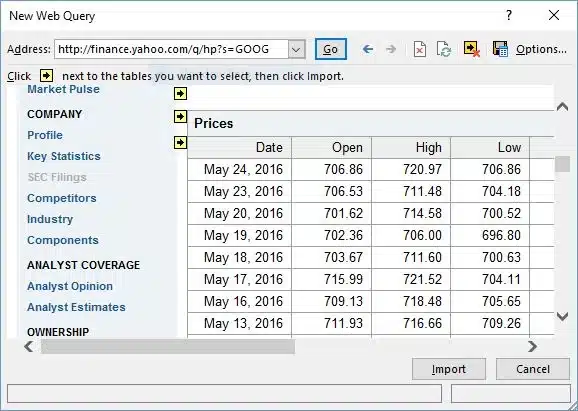
Open a workbook and go to the Data tab. In the Get and Transform Data group, click Get Data, then From Other Sources, then From Web. On many versions you will see a From Web button sitting directly on the ribbon, which does the same thing.
Paste the full URL of the page you want to scrape into the dialog box and click OK. Pick a page that displays its data in a visible table, since that is the structure Power Query reads best.
Excel connects to the page and opens the Navigator window. On the left you will see every table and element it detected, often labeled Table 0, Table 1, and so on. Click each one to preview it on the right and find the exact data you want. Many pages contain several hidden tables, so it is worth checking a few before you commit.
With the correct table selected, click Transform Data to open the Power Query Editor. This is where Excel goes far beyond a simple copy. You can remove columns you do not need, split text into separate fields, fix data types, filter out junk rows, and rename headers, all before anything reaches your sheet. Every action you take is recorded as a step you can edit or undo later.
When the preview looks right, click Close and Load. The cleaned data drops into a new worksheet as a connected table.
The real advantage shows up after that first load. Right-click the table, choose Refresh, and Power Query repeats every step against the live page in seconds. You can also open Query Properties and tick Refresh every, then set an interval so the worksheet updates on its own without you lifting a finger. That single feature turns a one-time scrape into a living report, which is ideal for tracking prices, search rankings, or stock levels. For the deeper connector settings and authentication options, Microsoft’s Power Query documentation is the reference worth bookmarking.
One caution is worth repeating. If a page loads its numbers through JavaScript after the initial request, Power Query may return an empty or partial table, because it reads the delivered HTML rather than a rendered browser view. When that happens, the page is telling you a spreadsheet is no longer the right tool for the job.
Excel VBA Web Scraping With an API
When Power Query is not flexible enough, VBA is the next step up. VBA is the scripting language built into Excel, and it lets you automate a scrape that runs the instant you click a button. The important update for 2026 is that the old approach of driving Internet Explorer from VBA is finished, since the browser itself no longer exists. The reliable modern pattern is to have VBA call an API and write the response straight into your cells.
The logic is straightforward. Your macro sends a request to a data endpoint using the MSXML2.XMLHTTP object, receives the response as text, usually formatted as JSON, and then parses the values you need into rows. A simple loop walks through the returned records and writes each one to a fresh line using the Cells row and column value syntax. Because there is no browser to crash and no fragile on-screen clicking, the script keeps working even when a site quietly changes its visual layout.
This method shines for repeatable jobs. Picture a sales team that refreshes exchange rates every morning, or an analyst who pulls the same set of metrics into an identical template each week. You write the macro once, assign it to a button, and anyone on the team can run it without ever touching the code behind it.
VBA does ask more of you than Power Query. You need to be comfortable reading basic code, storing an API key safely, and working with the structure of a JSON response. It also remains a single-machine tool, so it will not scale to thousands of pages or push past heavy anti-bot defenses. For one workbook doing one focused job on repeat, though, it is hard to beat for web scraping in Excel. If the target site offers no API at all, you are back to Power Query or, more realistically, a dedicated scraping tool built for the task.
Copy, Paste, and the Google Sheets Bridge for Quick Excel Scraping
Not every task deserves a query or a macro. Sometimes you simply need a small table once, and the fastest route is the plainest one. Highlight the data on the page, copy it, then use Paste Special in Excel and choose to paste as text or as HTML to keep the structure tidy. It does not refresh, but for a single small grab it takes seconds with nothing to set up.
A smarter middle option uses Google Sheets as a bridge. Sheets has a built-in formula, IMPORTHTML, that pulls a table or list from a public page automatically. You give it the page URL, the word table or list, and the index number of the element you want, and Sheets fills in the rest. It refreshes the result on its own, and you can then connect that sheet to Excel or download it as a workbook whenever you need the latest version.
This bridge is handy when Excel cannot read a page cleanly but Google Sheets can, which happens more often than you might expect, and it keeps a free, always-on copy in the cloud. The trade-off is that IMPORTHTML shares the same weakness as Power Query, since it reads static tables and lists only, so JavaScript-heavy pages and protected content stay out of reach. Treat it as a quick win rather than the foundation of a serious Excel web scraping workflow.
Excel Web Scraping Methods Compared
Before you pick a method, it helps to see them lined up side by side. The table below sums up what each one is good for, how much effort it asks of you, and where it tends to break.
| Method | Best for | Skill needed | Auto-refresh | Main limitation |
| Power Query (From Web) | Structured tables you refresh on a schedule | Low | Yes | Cannot read JavaScript-rendered or protected pages |
| Excel VBA with an API | Repeatable jobs on a single template | Medium | Yes, on click or timer | Needs an API and basic coding, single machine |
| Copy and Paste Special | A one-time grab of a small table | Very low | No | Fully manual, no updates |
| Google Sheets IMPORTHTML | Free, always-on copies of public tables | Low | Yes | Static tables and lists only |
Use this as a quick filter. If everything you need sits in the top two rows, Excel is the right home for the job. If you keep landing in the limitation column, the work has outgrown a spreadsheet and it is time to look further.
Where Excel Web Scraping Hits Its Limits
Excel earns its place for small, structured, repeatable work. It runs into a wall the moment a project grows in volume or complexity. These are the limits worth knowing before you commit a real workflow to a worksheet:
- Dynamic content defeats it. Pages that build their data with JavaScript after loading often return blank or broken results, because Excel reads the initial HTML rather than the finished page a human eventually sees.
- Anti-bot systems block it. Modern defenses study cursor movement, browser fingerprints, and request patterns in real time. A plain Excel request looks nothing like a real visitor, so it gets stopped quickly and often silently.
- It does not scale. Excel handles one page at a time. Crawling thousands of product pages, rotating IP addresses, and running many jobs in parallel are all simply outside its design.
- Maintenance falls on you. When a site changes its layout, your query or macro breaks without warning. Someone has to notice, diagnose, and rebuild it, and that cost returns every single time the target page changes.
- Quality checks are manual. There is no built-in way to catch a mismatched currency symbol, a missing field, or a duplicated row across a large dataset. Bad data slips in unnoticed and quietly distorts your analysis.
- Compliance is left to you. Excel will not read a robots file, throttle its own requests, or track removal policies. As the web shifts toward permission-based access, that blind spot turns into a genuine risk.
None of this makes Excel a poor tool. It makes it a specialized one. The real skill is recognizing which side of the line your project sits on before the limits start costing you time and credibility.
When to Move From Excel to a Managed Web Data Feed
There is a clear tipping point. Once you need data from many sites, refreshed often, and delivered in a guaranteed format, the hours you spend babysitting web scraping in Excel queries and repairing broken macros outweigh the cost of a proper pipeline. Web scraping has quietly become its own economy. The market sat near 1.03 billion dollars in 2024 and is projected to roughly double by 2030 at around a 14 percent annual growth rate, driven by businesses that treat web data as infrastructure rather than a side task.
The numbers behind the shift are striking. The F5 Labs 2026 report found that scrapers account for 10.2 percent of all global web traffic even after mitigation, rising to 53 percent in fashion and 49 percent in hospitality. Industries that depend on fresh data do not run on spreadsheets. They run on managed feeds that deliver clean, validated records straight into a dashboard or database.
How PromptCloud Scales Web Scraping Beyond Excel
This is the exact gap PromptCloud was built to close. Instead of asking your team to maintain queries and chase broken selectors, PromptCloud delivers fully managed web data as a service. It handles dynamic pages, rotates proxies, renders JavaScript, runs automated and human quality checks, and adapts when a target site changes, so you receive clean, structured records on a schedule rather than a stream of maintenance tickets. The data arrives in the format you choose, including CSV and direct feeds that drop straight into the Excel workflows you already use, so nothing about the way your team works has to change.
The same approach powers high-value use cases such as price intelligence and scraping restaurant data to drive growth, where freshness and coverage matter far more than a manual export ever could. If you are comparing vendors, it helps to see how PromptCloud measures up as a Diffbot alternative for structured extraction, a Scrape.do alternative for proxy-heavy targets, or a ScrapingBee alternative for rendering at scale. The right fit depends on your volume, the difficulty of your targets, and how much upkeep you want to own. When Excel becomes the bottleneck rather than the shortcut, a managed feed lets you keep the spreadsheet you trust and drop the maintenance you do not.
Need This at Enterprise Scale?
While Power Query and VBA work for a handful of structured pages, scraping thousands of pages across many sites introduces broken queries, IP blocks, JavaScript rendering, and constant maintenance.
Web Scraping Responsibly in the Permission Economy
However you handle web scraping in Excel, doing it responsibly is no longer optional. The web is moving into what many now call a permission economy, where access is negotiated rather than assumed. Cloudflare enforces bot restrictions by default, publishers embed machine-readable rules about who may collect their content, and marketplaces have appeared that license data access directly. The old assumption that anything visible in public is free to take no longer holds up.
The practical rules are easy to follow and they protect you over the long run. Check a site’s terms of service and its robots file before you scrape anything. Stick to public data and stay away from anything behind a login you are not authorized to use. Throttle your requests so you never strain a server, identify your tool honestly through request headers where appropriate, and act on removal requests promptly. These habits separate a sustainable data practice from one that gets blocked or ends up in a legal dispute. Responsible collection is what keeps the open web open for everyone who depends on it.
Making Excel Web Scraping Work for Your Business
Excel remains a genuinely useful way to scrape data from a website, as long as you use the methods that still work and respect the boundaries of the tool. Reach for Power Query when you need a structured table refreshed on a schedule, use VBA with an API for repeatable jobs on a fixed template, and keep the copy or Google Sheets bridge in your back pocket for quick one-off grabs. Skip the outdated web query box that older guides still teach, because it left for good alongside Internet Explorer.
The deeper lesson is about fit. Excel is a sharp tool for small, structured, well-behaved data, and a frustrating one for anything dynamic, large, or actively defended. When your needs outgrow the spreadsheet, that is not a failure on your part, it is progress, and a managed data feed will carry you the rest of the way. Start where Excel is strongest, prove the value quickly, and let the size of the job tell you when it is time to scale.
Tired of Power Query and VBA scrapers that break the moment a site changes, and web data your team won’t trust?
• No contracts. • No credit card required. • No scrapers to babysit.
Frequently Asked Questions
Can Excel pull data from a website automatically?
Yes. Using Power Query you can load a web table into Excel and set it to refresh on a schedule or each time the file opens, so the worksheet updates on its own. For API sources, a VBA macro can pull fresh data on a button click. Both work only for structured, non-protected pages.
How do I scrape data from a website into Excel without coding?
Use Power Query. Go to Data, then Get Data, then From Web, paste the URL, pick the table in the Navigator window, and click Load. It is entirely point and click. For pages Excel cannot read, a no-code scraper or Google Sheets IMPORTHTML is the next option to try.
How do I scrape data from multiple pages of a website into Excel?
Excel has no native crawler, so multi-page scraping is awkward. You can duplicate a Power Query for each URL or build a query that loops through a list of links, but it is slow and fragile. For many pages or a full catalog, a dedicated scraper or managed service that handles pagination is far more reliable.
Why does Excel show no tables or return a blank result?
This usually means the page builds its content with JavaScript after loading, so the data is not in the HTML Excel receives. It can also happen on login-protected or anti-bot pages. Try the site’s API, test Google Sheets IMPORTHTML, or use a rendering-capable scraper instead.
What is the difference between Power Query and VBA for web scraping in Excel?
Power Query is point and click, ideal for pulling and refreshing structured tables with no code. VBA is a scripting approach that calls an API and writes results into cells, which is better for custom, repeatable jobs. Power Query is easier to start with, while VBA is more flexible but needs basic coding.
How do I scrape a specific table from a website into Excel?
In the Power Query Navigator window, every detected table is listed separately, often as Table 0, Table 1, and so on. Click each one to preview it, select the table with your data, clean it in the Editor if needed, then Close and Load. Only the table you chose imports into your sheet.
How often can Excel refresh scraped website data?
As often as you set. In Query Properties, tick Refresh every and choose an interval such as every 30 or 60 minutes, and enable refresh when the file opens. The practical limits are your machine staying open and the source site allowing frequent requests without blocking you.
Is scraping website data into Excel legal?
Collecting public data is generally allowed, but it depends on the site’s terms of service, the type of data, and your region. Avoid login-protected or personal data you are not authorized to use, respect robots files, and do not overload servers. When in doubt, seek permission or use a compliant data provider.
Can Excel scrape data behind a login or paywall?
Not reliably. Power Query supports some basic authenticated connections, but most login walls, paywalls, and anti-bot systems will block or break it. Scraping content you are not authorized to access also raises legal and ethical issues. For permitted gated data, an API or a managed service is the safer route.
What is the best free way to scrape a website into Excel?
For a static table, Power Query is the best free, built-in option. Google Sheets IMPORTHTML is a strong free alternative you can export to Excel. For a one-off need, copy and Paste Special works in seconds. All three are limited to simple, public, structured pages.