



How Instant Data Scraper Chrome Extensions Work
Pulling structured data from a live webpage used to require coding skills, engineering time, and a fair amount of patience. That gap has closed. Today, an instant data scraper Chrome extension can convert a product listing page, directory, or search result into a clean spreadsheet in under five minutes, with no code and no waiting on a developer.
The market for these tools has grown considerably. Chrome extensions now range from genuinely zero-configuration tools that detect data automatically to platforms that handle JavaScript rendering, pagination, and cloud scheduling. Choosing the wrong one wastes time. Choosing the right one saves hours every week.
This guide covers the top 10 instant data scraper Chrome extensions worth using in 2026, how to set one up from scratch, the criteria that actually matter when comparing them, and the signals that tell you when it is time to move beyond browser-based scraping entirely. If you want a broader grounding in what web scraping involves at a technical level before diving in, that context is useful to have.
These extensions sit inside your Chrome browser and work directly on the page you are currently viewing. When activated, they read the page’s HTML structure and identify repeating patterns: product cards, table rows, list items, and any structured data elements they can recognise. Most tools let you point at an element, confirm your selection, and start extracting within seconds.
The key distinction from traditional scraping is context. Browser extensions operate inside a real, rendered browser session. That means they can see content after JavaScript has executed, after dynamic elements have loaded, and even inside pages that require a login. A headless HTTP scraper sending raw requests often misses all of that.
The tradeoff is scale and autonomy. Extensions are constrained by your local machine’s memory and processing capacity. They cannot run unattended overnight, monitor hundreds of URLs in parallel, or flag you when a site layout change silently breaks your extraction rules. Understanding this boundary upfront determines how much of your workflow you can realistically build on them.
For a deeper look at how real-time data collection feeds AI systems at the infrastructure level, see real-time scraping for LLM agents.
Why Teams Use a Chrome Data Scraping Extension
Speed is the primary appeal. You can move from a live webpage to a downloaded CSV in minutes without writing a line of code or opening a ticket. For time-sensitive work, that immediacy matters.
Cost is nearly zero for most use cases. The majority of extensions have functional free tiers, making them accessible to individuals, students, and small teams that need occasional data without a recurring infrastructure budget.
There is also a strong validation argument. Before investing engineering time in an automated pipeline, a quick browser scrape across a handful of pages tells you whether the data you want is actually available and structured the way you expect. Many teams use Chrome extensions specifically as a feasibility check before committing to anything more permanent.
Finally, for genuinely one-off needs, enterprise tooling is overkill. Downloading a supplier catalog once or pulling a list of directory listings for a single analysis does not require a managed pipeline. The right tool fits the task at hand.
For teams requiring reliable, recurring web data, managed web scraping services provide schema-validated delivery without the maintenance overhead of DIY pipelines.
Spending more time fixing your scraper than using your data?
Get clean, structured web data delivered on your cadence from a managed pipeline built around your specific sources and schema.
• No contracts. • No credit card required. • No scraping infrastructure to maintain.
The Top 10 Instant Data Scraper Chrome Extensions (2026 Edition)
1. Instant Data Scraper
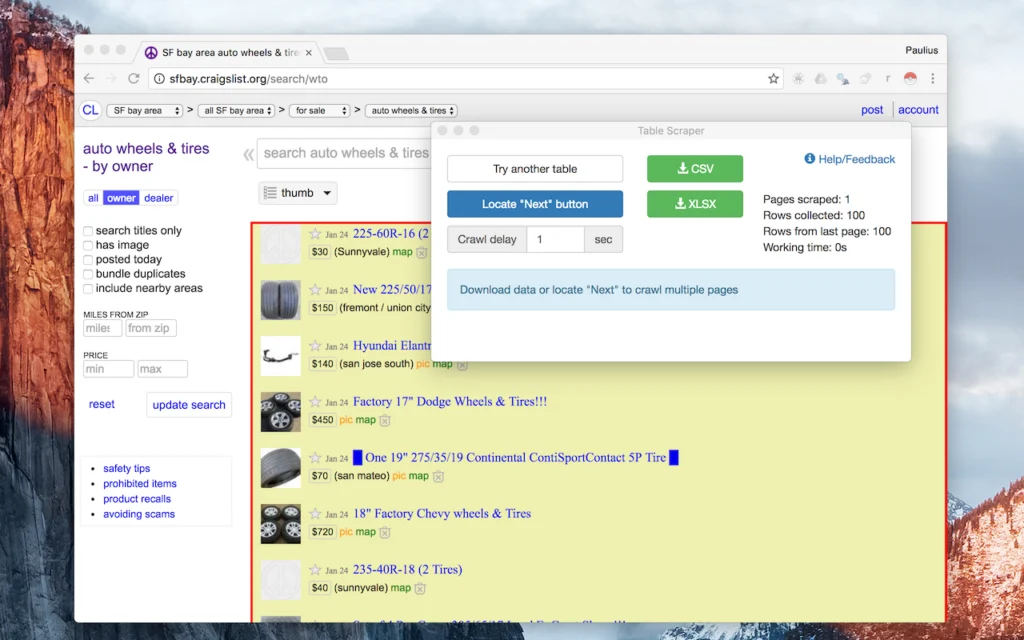
Source: Chrome Web Store
The tool that popularised the concept. Instant Data Scraper uses AI-assisted heuristic detection to automatically identify tables and list-like content on any page you visit. There is no configuration required: install the extension, open a webpage, click the icon, and the extension presents a structured preview of what it detected. Export to CSV or Excel with one more click.
Chrome Web Store ratings sit at 4.9 out of 5 from over 7,000 reviews, reflecting its strength on simple, well-structured pages. The extension handles pagination via Next button detection for multi-page captures, though results vary depending on how a given site implements pagination. One important update for 2026: the extension is no longer actively maintained by its original developer, Web Robots. That means no new features or bug fixes, so for anything beyond straightforward table extraction, a maintained alternative is worth considering.
Best for: Founders, marketers, and analysts running quick validations or one-off research tasks.
Limitation: No scheduling or automation. No longer actively maintained. Pagination is fragile on complex sites.
Free tier: Fully free, no account required.
2. Web Scraper
Source: Chrome Web Store
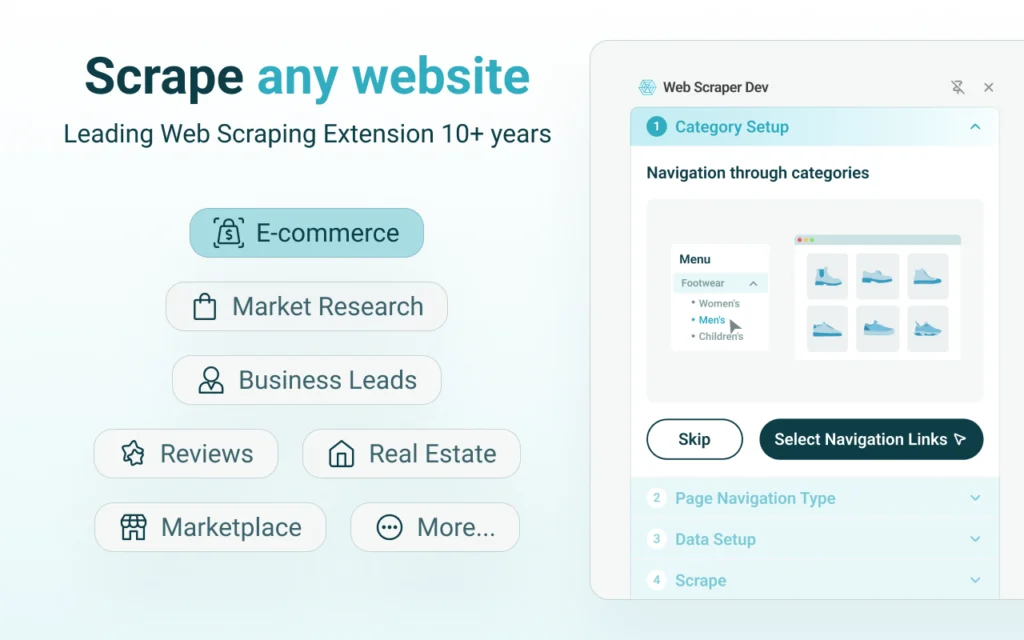
The most established browser-based scraping extension available. Web Scraper works through a sitemap model where you define a crawl plan: starting URL, navigation paths, and selectors for each data field you want to capture. This upfront investment pays off on structured catalogs, directory-style websites, and multi-page pagination flows that a plug-and-play tool would struggle with.
Chrome store feedback reflects a split audience. Technical users who invest the setup time report reliable daily performance over months. Beginners frequently find the sitemap configuration intimidating without a tutorial. The extension serves over 800,000 active users and holds a 4.0 out of 5 rating.
Best for: SEO professionals, ecommerce teams, and analysts working with structured catalogs.
Limitation: Real learning curve. Dynamic JavaScript-heavy sites require additional configuration work.
Free tier: Free for manual local scraping. Cloud scheduling requires a paid plan.
3. Thunderbit (Formerly ParseHub)
Source: Chrome Web Store
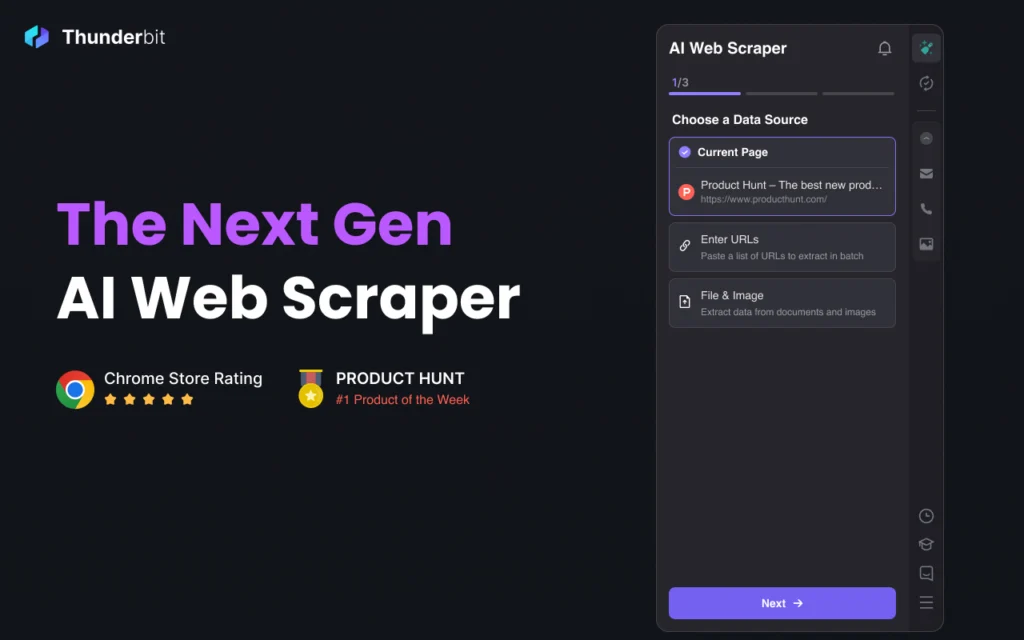
Thunderbit absorbed ParseHub’s user base and combined its visual workflow editor with full JavaScript rendering and built-in proxy rotation. It handles dynamic sites that most browser extensions cannot touch and supports scheduling and automated re-runs. The tool positions itself as the bridge between quick browser extraction and server-based automation.
Setup takes longer than a zero-configuration extension, but the investment is worthwhile for recurring extractions from complex, JS-heavy pages. Exports to CSV, JSON, and Google Sheets are clean. The free tier allows six pages per month, with paid plans unlocking volume.
Best for: Users dealing with JavaScript-heavy websites, dynamic content, or recurring extraction needs.
Limitation: Longer initial setup compared to simpler tools. The free tier is tightly capped.
Free tier: Yes, limited to 6 pages per month.
4. Octoparse
Source: octoparse.com’s website
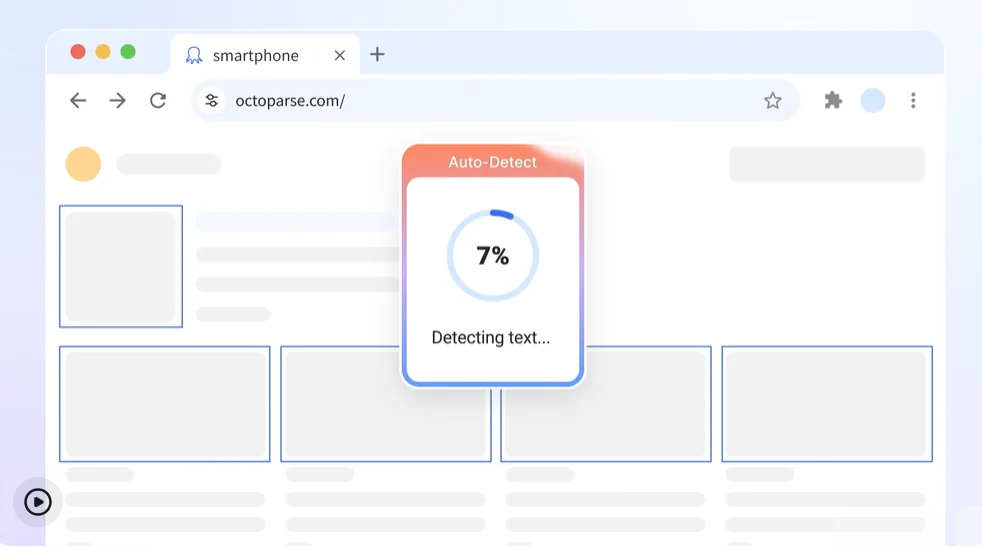
Octoparse balances no-code simplicity with genuine power under the hood. Its Wizard Mode walks beginners through the extraction process step by step, while its template library covers major platforms including Amazon, LinkedIn, and Google Maps out of the box. Dynamic rendering and pagination automation work reliably on most tested sites.
The free version handles limited projects. Cloud automation, scheduling, and API access require upgrading to a paid plan, which is where the platform earns its enterprise positioning. For teams that need a non-technical user to run extractions without engineering support, Octoparse is consistently the most recommended option.
Best for: Business users who need no-code simplicity and dynamic site support in the same tool.
Limitation: Automation and scheduling are locked behind paid subscription tiers.
Free tier: Available for limited projects.
5. Data Miner
Source: Chrome Web Store
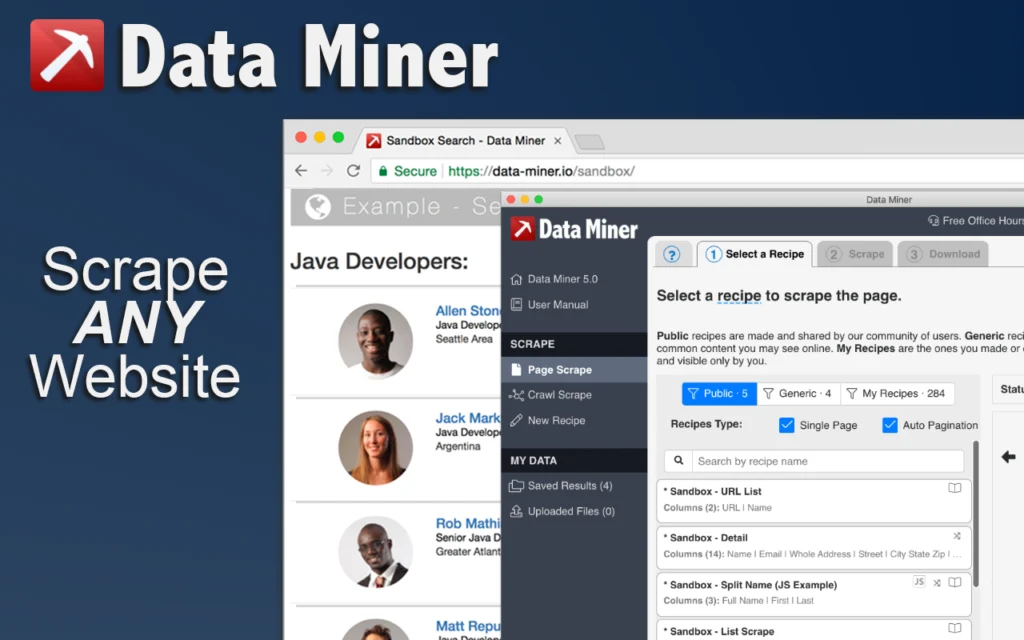
Data Miner’s primary differentiator is its community template library. Users can search for pre-built recipes for popular sites including LinkedIn, Yelp, and Indeed, select one, and run an extraction without configuring a single selector. Teams working across similar domains can share custom recipes internally, reducing repeated setup work significantly.
When a recipe matches your target site, Data Miner is one of the fastest tools available. When it does not, building a custom recipe from scratch requires more time than comparable visual tools. The free tier allows 500 pages per month.
Best for: Teams with recurring extraction tasks across similar domains or well-covered websites.
Limitation: Custom recipe creation takes time. Community coverage varies by site.
Free tier: Yes, 500 pages per month.
6. Simplescraper
Source: Chrome Web Store
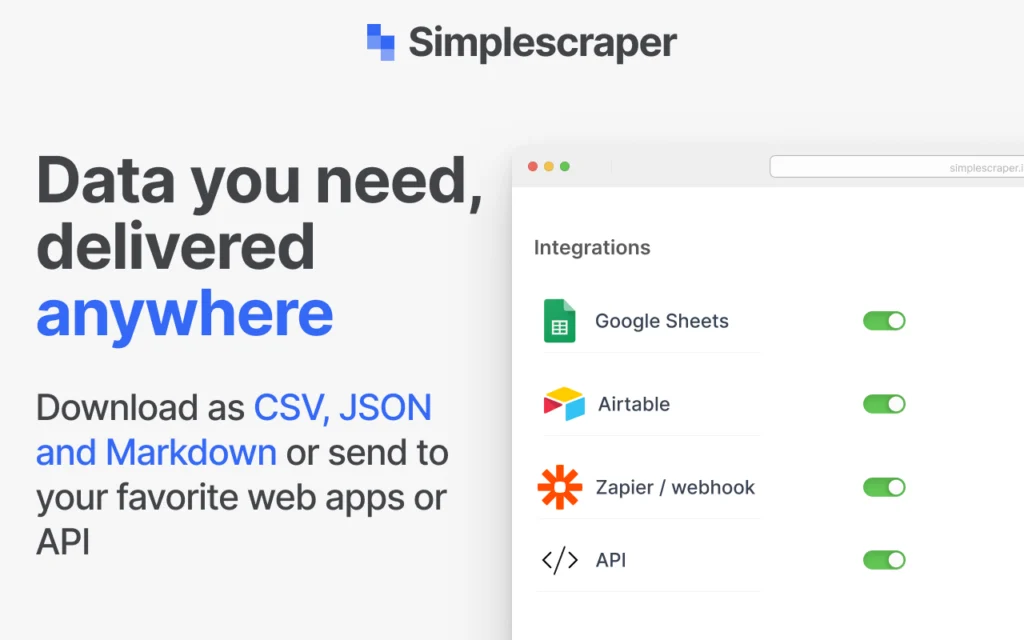
Simplescraper lives up to its name. The interface is clean, the setup is minimal, and batch extraction across multiple similar pages works well within the free tier. It is a strong option for researchers and analysts who want something lighter than Octoparse but more capable than a pure click-and-export tool.
Browser performance degrades on larger datasets, and the most useful automation features sit behind a paid plan. For contained tasks under a few thousand rows, it performs reliably and with minimal friction.
Best for: Lightweight batch extraction across multiple similar pages.
Limitation: Browser slowdowns on large datasets. Automation requires a paid plan.
Free tier: Yes, for basic usage.
7. CopyTables
Source: Chrome Web Store
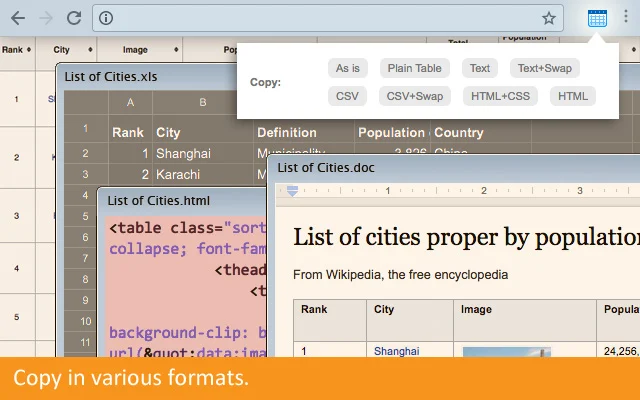
CopyTables does one thing: it grabs visible HTML table data and pushes it directly into Excel or Google Sheets. There is no configuration, no selector setup, and no pagination support. For researchers, journalists, and analysts working with static tables on government sites, financial databases, or Wikipedia-style pages, this focused scope is a genuine advantage.
Do not use it for dynamic content, paginated results, or anything requiring navigation between pages. Its value is entirely in its simplicity for the narrow task it handles.
Best for: Researchers extracting visible static HTML tables directly into spreadsheets.
Limitation: Strictly static tables only. No pagination, no dynamic content support.
8. Dexi.io
Source: Dexi.io’s website
Dexi.io operates as a cloud-based extraction platform more than a lightweight browser extension. It supports Chrome and Firefox, offers workflow templates, streaming data options, and API delivery to downstream systems. Setup requires meaningful onboarding time and is better suited to teams than individual users doing occasional extraction.
Exports to CSV, JSON, and direct API endpoints are structured and suitable for BI integrations. Pricing is aimed at teams and enterprises rather than one-off scraping needs, which affects the total cost of entry significantly.
Best for: Teams that need cloud-based workflows and structured data automation.
Limitation: Not a lightweight instant tool. Setup time is significant. Primarily paid plans.
9. Helium Scraper
Source: Chrome Web Store
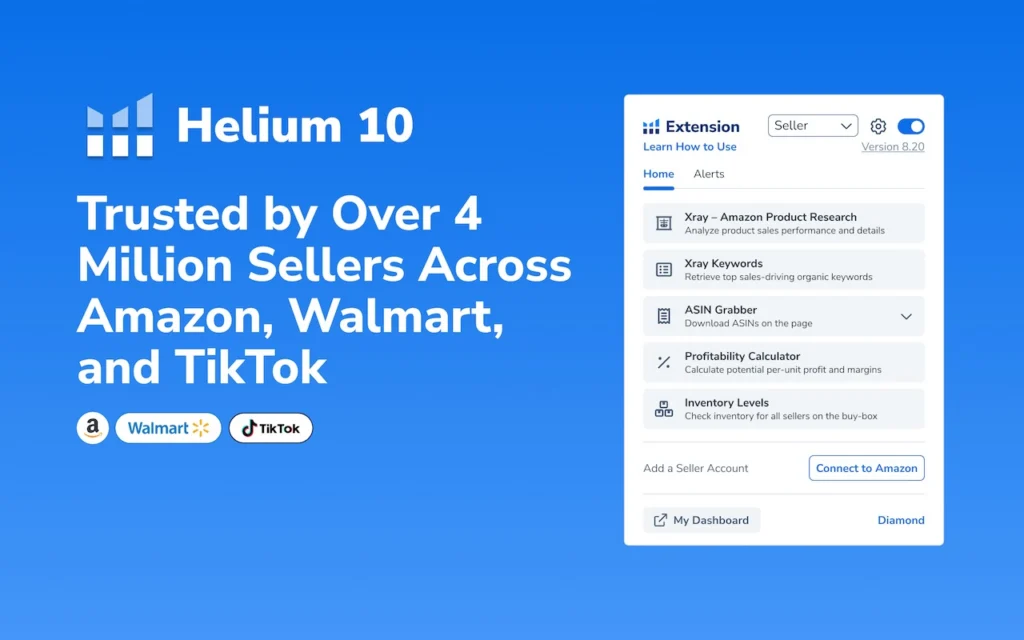
Helium Scraper integrates machine learning for element recognition, which allows it to handle complex and dynamically loaded pages that trip up simpler CSS or XPath-based tools. The ML component reduces extraction breakage when site layouts shift slightly, which is a real operational advantage for teams scraping sites that change frequently.
Resource usage is noticeably higher than lightweight browser tools, and the software is priced as a professional product rather than a free extension. Configuration accuracy directly affects output quality.
Best for: Technical users dealing with complex or dynamically rendered pages.
Limitation: High system resource usage. Paid software with a steeper learning curve.
10. Import.io
Source: import.io’s website
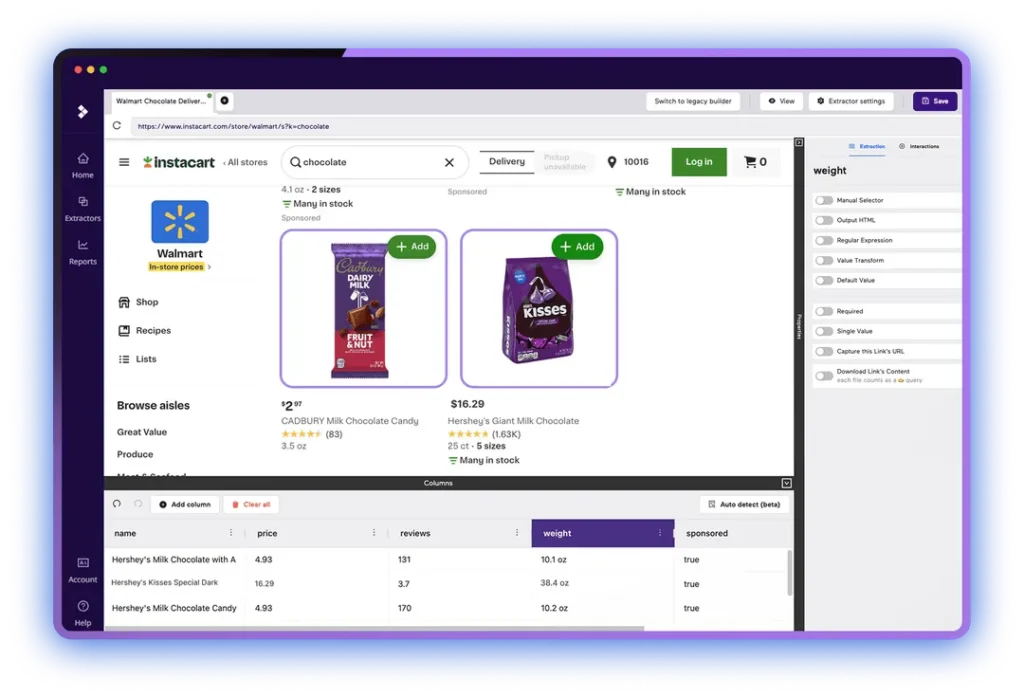
Import.io is the most enterprise-oriented entry on this list. It offers full workflow automation, API integration, built-in analytics, and support for recurring extraction jobs across multiple domains. The learning curve is steeper than any other tool here, and the platform is genuinely overpowered for simple or infrequent scraping needs.
For organisations managing recurring structured data extraction at scale, Import.io delivers stable, consistent output with API integration that connects directly to data warehouse workflows. This is not a tool you install for a quick data pull.
Best for: Organisations needing workflow automation and recurring structured data extraction at scale.
Limitation: Steep learning curve. Expensive for anything less than a recurring production use case.
Comparing the Top Instant Data Scraper Chrome Extensions at a Glance
| Tool | Ease of Use | Dynamic Pages | Export Formats | Best For | Free Tier |
| Instant Data Scraper | Very Easy | Basic | CSV, Excel | Quick one-off research | Yes (fully free) |
| Web Scraper | Moderate | Moderate | CSV, JSON | SEO teams, catalogs | Yes |
| Thunderbit | Moderate | Excellent | CSV, JSON, Sheets | JS-heavy dynamic sites | Limited (6 pages/mo) |
| Octoparse | Easy | Excellent | CSV, Excel, API | No-code enterprise use | Limited projects |
| Data Miner | Easy | Good | CSV, Excel | Teams, shared templates | Yes (500 pages/mo) |
| Simplescraper | Very Easy | Basic | CSV | Lightweight batch work | Yes |
| CopyTables | Very Easy | None | Excel, Sheets | Static HTML tables only | Yes |
| Dexi.io | Complex | Excellent | CSV, JSON, API | Cloud automation teams | No |
| Helium Scraper | Complex | Excellent | CSV | Technical power users | No (paid software) |
| Import.io | Complex | Excellent | CSV, API | Enterprise recurring jobs | Trial only |
How to Use a Web Scraper Chrome Extension: Step-by-Step
The following walkthrough uses the Web Scraper extension by webscraper.io, which is the best choice for users who need more than a single-click capture but are not yet ready for a managed pipeline. The same core principles apply across most tools on this list.
Step 1: Install the Extension
Open the Chrome Web Store and search for Web Scraper by webscraper.io. Click Add to Chrome, then Add Extension. Once installed, open Chrome Developer Tools using Ctrl+Shift+I, or right-click any page and select Inspect. A new Web Scraper tab will appear alongside the Elements and Console tabs.
Step 2: Create a Sitemap
A sitemap is a crawl plan that tells the extension where to start, what to navigate, and what to extract. In the Web Scraper tab, click Create new sitemap and enter the target URL. If the site uses numbered pagination, such as /page/1 through /page/10, use bracket notation in the start URL field: https://example.com/listings/[1-10]. This instructs the scraper to iterate through all ten pages automatically.
Step 3: Define Your Selectors
Selectors tell the scraper which data to capture from each page. Click Add new selector, assign an ID such as product_title, choose a type (Text, Link, or Element attribute), and use the visual picker to click the element on the page. Check the Multiple option if the element repeats across the page.
A well-chosen CSS selector is stable and specific. Avoid auto-generated dynamic class names that change between browser sessions. Target semantic elements instead: div.product-card h2.title is more reliable over time than .x9a3d2f. Validate your selector in the Chrome console by running document.querySelectorAll(‘your-selector’) and confirming the count matches the number of visible items on the page.
Step 4: Configure Pagination
For sites that use a Next button rather than numbered URLs, add a Link selector targeting that button and check the pagination selector option. The scraper will follow the Next button until no more pages remain. Always test this on two or three pages before running the full crawl to confirm pagination logic stops correctly.
Step 5: Run the Scrape and Export
Click the sitemap name and select Scrape. A new browser tab opens and processes each page in sequence. When complete, navigate to Export Data as CSV in the Web Scraper tab and download your file.
Before running the full sitemap, test on two or three pages and inspect the CSV for missing fields, duplicate rows, and encoding errors. For dynamic pages where content loads after user interaction, add a 2,000 to 3,000 millisecond delay before extraction begins. For pages with a Load More button, add an Element Click selector targeting that button before defining data selectors as child selectors beneath it.
Once your CSV is ready, it can be imported into Excel, Google Sheets, or Python for analysis. Teams that run this validation step first are better positioned to decide whether manual exports are sufficient or whether they need an automated alternative.
How to Choose the Right Instant Data Scraper for Your Workflow
Choosing between these tools is less about comparing feature lists and more about aligning with your actual workflow. These five criteria cut through the noise.
Page Complexity. Static HTML tables are the simplest case. Product grids with repeating elements need reliable pattern detection. JavaScript-rendered pages require a tool that waits for content to load before extracting. If your target site uses infinite scroll or AJAX-loaded content, verify that your chosen extension explicitly supports dynamic rendering before making a decision.
Frequency of Use. One-time extractions and exploratory research are ideal browser extension use cases. If the same task needs repeating weekly, or if the dataset needs to feed a dashboard, model, or report on a schedule, manual browser exports become a bottleneck fast.
Export Quality. Test any extension on three to five pages before committing. Check whether column names stay consistent across paginated exports, whether empty fields are handled gracefully, and whether text encoding is clean. Small export issues multiply into hours of cleanup at scale.
Permission Model. Every Chrome extension operates inside your browser session and may access cookies and session tokens depending on the permissions it requests. Review the permissions list before installation. Avoid tools requesting clipboard access or file system control unless there is a clear functional reason. For enterprise teams, run extensions through an internal approval process before deploying them broadly.
Scale Ceiling. Browser-based tools are constrained by local machine memory. Large datasets freeze Chrome tabs. If you anticipate scraping tens of thousands of records or monitoring hundreds of URLs regularly, consider whether the extension supports cloud execution or whether a managed pipeline is the appropriate next step.
Evaluating Managed Solutions?
Get clean, structured web data delivered on your cadence from a managed pipeline built around your specific sources and schema.
How AI Is Changing Browser-Based Data Extraction in 2026
The most significant shift in browser-based scraping over the past year has been the integration of machine learning into how extensions identify and extract data.
Traditional extensions rely on CSS selectors or XPath queries that target specific HTML elements. These work well when page structure is predictable but break silently when a developer changes a class name or reorganises the layout. AI-powered extensions now use visual pattern recognition to understand layout intent rather than literal HTML structure. A scraper that recognises a product card by its visual appearance can continue extracting correctly after minor layout changes that would break a selector-based approach entirely.
LLM integration is also emerging in higher-end tools. Some extensions can now classify scraped text before export: labelling reviews as positive or negative, extracting named entities like brand names or product features, and structuring output in formats ready for downstream analysis. This reduces post-processing work significantly for teams feeding scraped data into AI workflows.
Chrome’s AI Permission Monitor, rolled out in early 2026, now automatically flags extensions that request excessive privileges. For enterprise buyers evaluating new tools, this makes the permissions review step considerably easier.
Teams building AI data pipelines often use browser-based scraping as the first capture layer. For more on how those pipelines are structured at scale, the guide on scraping Amazon prices at scale covers the architecture decisions involved in moving from browser capture to production-grade extraction.
Security, Compliance, and Legal Considerations for 2026
The legal landscape around web scraping has tightened over the past two years, and browser extension users are not exempt regardless of scale.
The EU Digital Services Act, in full effect since 2024, requires clearer disclosure and labelling for automated data collection. California’s Data Broker Act, effective in 2026, extends CCPA obligations by mandating registration for entities reselling scraped data commercially. India’s DPDP Act restricts the scraping of identifiable user content without consent. Japan’s Transparency Guidelines for AI, published in 2026, directly address the use of scraped data in training datasets.
For browser extension users, the most practical compliance principle is straightforward: do not collect personal data using these tools without understanding whether your jurisdiction and the target site’s terms of service permit it. Check robots.txt before every scraping run. When uncertain, seek legal guidance rather than assuming browser-based tools operate in a compliance-free zone.
On the security side: always install extensions from the official Chrome Web Store, verify the developer’s update history, and avoid any extension that requests clipboard or file system access without a clear functional justification.
5 Signs Your DIY Scraping Setup Has Outgrown the Browser
Browser extensions are excellent tools for the right job. When the job changes, they become a liability. These are the five clearest signals it is time to move on.
1. You are regularly hitting bot blocks or CAPTCHAs. Sites protected by Cloudflare, Akamai, or similar systems detect automated access patterns. Browser extensions do not rotate IPs, adapt request headers, or handle fingerprinting challenges reliably. Even when the tool appears to be running, your actual extraction success rate may be collapsing without a clear error message surfacing.
2. Output quality is inconsistent without explanation. Three pages export cleanly. One is missing rows. Another has blank headers. Nothing crashes, so it is easy to assume the output is usable. But once that data feeds into reporting or analysis, the damage surfaces downstream. Browser extensions provide no schema validation, no field consistency checks, and no alerts when selectors stop working after a site update.
3. Maintenance is consuming meaningful time. What started as a quick export has turned into weekly selector repairs, CSV deduplication sessions, and pagination debugging. The moment scraping maintenance becomes a recurring calendar item, the economics of DIY change considerably.
4. You need data delivered to a system, not just downloaded as a file. There is a meaningful difference between a CSV export and a reliable data pipeline. Once scraped data needs to land in a warehouse, feed a model, or update a dashboard on a schedule, manual downloads are no longer adequate. You need schema consistency, retry logic, timestamped delivery, and quality monitoring.
5. Your use case involves scale or frequency. Monitoring dozens of competitor URLs daily, tracking pricing across thousands of SKUs, or running recurring extractions across multiple domains requires infrastructure. Proxy rotation, retry queues, concurrency controls, and failure handling are not features browser extensions provide.
When proxy strategy becomes a relevant consideration for your setup, the comparison between mobile proxy versus datacenter options for scraping is worth reviewing before making a decision.
The Real Cost of DIY Scraping Over 12 Months
Free tools are not free at scale. A Dataversity survey from 2026 found that organisations relying solely on browser extensions for recurring scraping spend approximately 2.5 times longer cleaning and merging data compared to teams using structured APIs or managed feeds. That time cost does not appear in monthly tool budgets but shows up clearly in analyst and developer capacity.
For a mid-sized team scraping 500,000 or more pages per month, with developer time valued at $75 per hour, the realistic 12-month cost breakdown typically includes: developer time to build and maintain the setup at $36,000 to $54,000; proxy infrastructure at $6,000 to $18,000; anti-bot tooling and updates at $3,000 to $9,000; QA and data cleaning at $4,500 to $9,000; and infrastructure and hosting at $2,400 to $6,000. The DIY range comes to $51,900 to $96,000 annually. Managed scraping services for the same volume generally run $24,000 to $48,000 per year, with monitoring, retries, and quality assurance included.
The gap widens further when teams encounter harder targets that require additional engineering cycles to stay unblocked. The direct cost comparison understates the full picture; the more significant cost is the engineering capacity tied up in maintenance rather than product work.
For teams operating in niche data-heavy verticals, the pattern scales similarly. The analysis of Etsy scraping infrastructure in 2026 illustrates how category-level complexity quickly exceeds what browser tools can handle reliably.
How PromptCloud Bridges the Gap Between Browser Scraping and Production Data
Browser extensions are the right starting point for most teams. They let you validate data sources, test extraction feasibility, and move quickly without infrastructure overhead. But when the work shifts from occasional pulls to production-grade delivery, the architecture has to change.
PromptCloud is a managed web data extraction service built for exactly this transition. Rather than maintaining your own scraper infrastructure, dealing with bot detection, or building retry logic from scratch, you define the data you need and PromptCloud handles the full delivery stack.
Here is what that looks like in practice. A mid-sized travel aggregator started with the Instant Data Scraper Chrome extension to track competitor hotel listings. Within a few months, the team hit familiar walls: manual downloads could not keep up with daily pricing updates, exported CSVs lacked consistent schema, and new site layouts broke extraction rules weekly. After migrating to PromptCloud, they received daily structured delivery in Parquet format, automatic monitoring for missing fields, and API integration with their pricing dashboard. The result was a 40 percent reduction in data lag with zero manual maintenance overhead.
For teams at the inflection point, the practical question is not whether managed infrastructure is worth it. It is how much longer to absorb the hidden costs of DIY before making the switch.
PromptCloud’s infrastructure provides continuous scraping with automatic retries, custom schema design, storage integration with S3, BigQuery, and Snowflake, and built-in GDPR and CCPA compliance. The browser extension you used to validate your data sources becomes a prototype; PromptCloud becomes the production system.
When to Move from Browser Extensions to Managed Infrastructure
The transition from browser-based scraping to a managed solution is not a sudden jump. Most teams move through recognisable stages.
Stage one is ad hoc scraping: analysts download what they need manually, on demand, using whichever extension works. Stage two introduces process documentation: shared templates, standard operating procedures, and folder structures that standardise the workflow across a team. Stage three brings partial automation through scheduled scripts or APIs pushing scraped data to shared dashboards. Stage four is managed infrastructure, where a dedicated vendor delivers automated, monitored, schema-validated data feeds on a defined schedule. Stage five is full analytics integration, where web data merges with CRM, ERP, or ML systems and becomes part of core business intelligence rather than a side project.
Most browser extension users operate in stages one or two. The inflection point typically arrives when the data starts feeding something business-critical and unreliable delivery becomes a genuine operational risk. At that point, the case for managed infrastructure is straightforward. The economics favour it, the maintenance burden argues for it, and the data quality requirements make it necessary.
Conclusion
Instant data scraper Chrome extensions have matured into legitimate workflow tools. For exploratory research, feasibility validation, competitive monitoring, and datasets under a few thousand rows, they offer a speed and accessibility advantage that more complex tools cannot match. The barrier to entry is low enough that almost any team can start extracting structured data within an hour of reading this guide.
The limitations are structural, not incidental. Browser extensions cannot run unattended, scale to enterprise volumes, or provide the data quality guarantees that production systems require. Recognising when your use case has crossed that threshold is what separates teams that spend their time acting on data from those that spend it maintaining fragile extraction scripts.
Use browser extensions for what they are genuinely good at. When the requirements grow, treat the transition to managed infrastructure as a sign of data maturity rather than a tool failure.
Ready to evaluate? Compare managed web scraping services options →
Spending more time fixing your scraper than using your data?
Get clean, structured web data delivered on your cadence from a managed pipeline built around your specific sources and schema.
• No contracts. • No credit card required. • No scraping infrastructure to maintain.
Frequently Asked Questions
1. Is the Instant Data Scraper Chrome extension safe to install?
Yes, when installed from the official Chrome Web Store. The extension has passed security audits and VirusTotal scans as recently as April 2026. As with any extension, review the permissions list during installation. Instant Data Scraper requests access to the tabs you visit, which is standard for scraping tools, but does not request clipboard or file system access. For enterprise use, run it through your internal approval process before deploying across a team.
2. Does Instant Data Scraper work on JavaScript-rendered pages?
It works on lightly dynamic pages but struggles with content that loads entirely through JavaScript after the initial page render. Because the extension operates on the visible DOM state at the time you activate it, pages that require scroll, click, or wait actions to reveal data may produce incomplete results. For JavaScript-heavy sites, tools like Thunderbit, Octoparse, or Helium Scraper are better suited.
3. What is the difference between Instant Data Scraper and Web Scraper?
Instant Data Scraper is a zero-configuration tool: it detects data automatically, requires no setup, and is best for quick, one-off captures. Web Scraper requires you to build a sitemap that defines your crawl logic, which takes more time upfront but gives you reliable, repeatable extraction across complex paginated sites. Use Instant Data Scraper for speed and simplicity; use Web Scraper when you need control and consistency across multiple runs.
4. Can I scrape data from websites with login walls using a Chrome extension?
Yes. Because Chrome extensions operate inside your active browser session, they can extract data from pages that are visible after you have logged in manually. This includes internal dashboards, e-commerce account pages, and platforms like LinkedIn or Google Maps. The extension sees the same rendered page you see. Note that scraping behind a login may violate a site’s terms of service even if it is technically possible, so always check before proceeding.
5. How do I export scraped data to Google Sheets directly from a Chrome extension?
Several extensions support direct Google Sheets export, including Data Miner, Thunderbit, and CopyTables. For extensions that export CSV only, import the file into Google Sheets by going to File, then Import, then Upload. Alternatively, use Zapier or Google Apps Script to automate the transfer from a downloaded CSV into a connected spreadsheet, removing the manual step entirely.
6. Why is my Chrome scraper returning empty rows or blank columns?
The most common causes are selector mismatch, a delay before dynamic content loads, and pagination overlap creating blank entries. Start by using the extension’s preview mode before running a full extraction. If the preview shows correct data but the export does not, add a wait delay of 2,000 to 3,000 milliseconds to give JavaScript-loaded content time to appear. If columns are blank despite correct preview, the selector may be targeting a container rather than the data field itself.
7. Is it legal to use an instant data scraper Chrome extension?
Whether scraping a particular site is legal depends on the site’s terms of service, the type of data being collected, and the jurisdiction you operate in. Scraping publicly available, non-personal data is generally accepted in most jurisdictions, and courts in several countries have upheld the legality of scraping public web content. Collecting personally identifiable information such as names, email addresses, or social profiles without consent can violate GDPR, CCPA, or India’s DPDP Act depending on your location. Always review a site’s robots.txt and terms of service before running any extraction.
8. What happens when a website changes its layout and breaks my scraper?
Browser extension scrapers rely on CSS selectors or visual pattern matching, both of which can break when a site updates its HTML structure. For selector-based tools like Web Scraper, you need to manually revisit and update the affected selectors. For AI-powered tools like Thunderbit or Helium Scraper, the visual pattern recognition layer often adapts automatically to minor layout changes, though significant redesigns may still require intervention. In managed pipeline solutions, selector monitoring and self-healing logic handle this automatically without manual effort.
9. When should I stop using a Chrome extension and move to a managed scraping service?
The clearest indicators are when your scraping runs are regularly blocked by bot protection systems, when data quality is inconsistent enough to require manual cleaning after every export, when the same extraction task needs to run on a recurring schedule, or when the data needs to land in a warehouse or dashboard rather than being downloaded as a file. If any of these are true, the hidden costs of maintaining a DIY setup typically exceed the cost of a managed solution within six to twelve months.
10. Can I use multiple Chrome scraping extensions at the same time?
Technically yes, but it is not recommended. Running multiple scraping extensions simultaneously increases the risk of browser performance degradation, conflicting permissions, and unpredictable behaviour on the page you are trying to extract. It is better practice to identify the single extension that best fits your use case and use it exclusively. If different tasks require fundamentally different tools, run them in separate browser sessions or profiles rather than enabling them concurrently.